
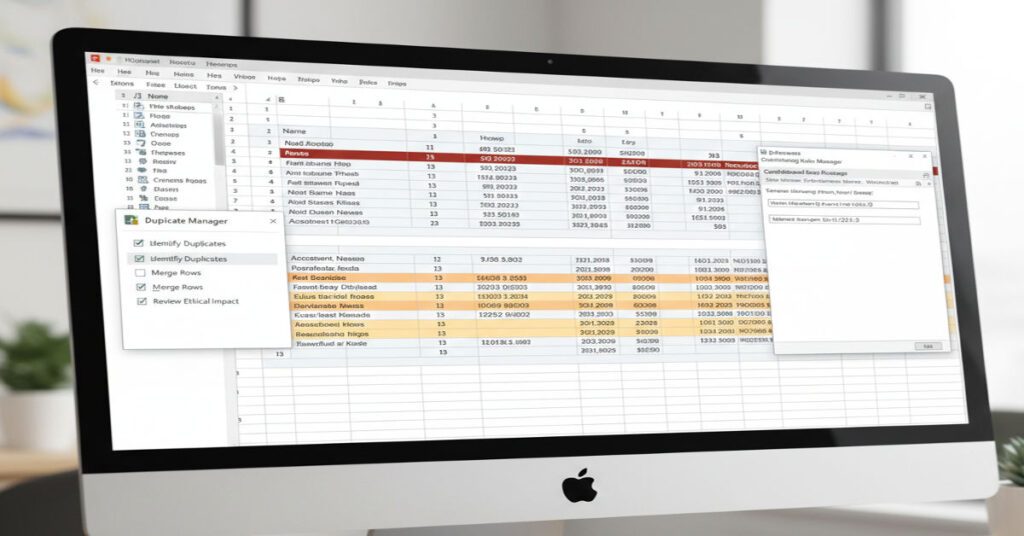

In the modern workplace, Excel remains an indispensable tool for data management, yet even seasoned professionals encounter errors when duplicates silently skew analysis. Identifying repeated entries is not just about visual tidiness directly influences reporting accuracy, resource allocation and operational decision-making. While Excel offers native Conditional Formatting to reveal duplicates quickly, How to Highlight Duplicates in Excel technique has nuanced applications, from highlighting entire rows to excluding first occurrences. Mastery of these methods saves hours of manual review and mitigates downstream errors that can propagate through pivot tables, dashboards and automated reporting pipelines.
For instance, financial analysts often need to detect repeated invoice numbers to prevent double payments. Similarly, marketers cross-referencing campaign data may require multi-column comparisons to ensure each record is unique. Across industries, failing to flag duplicates can trigger costly mistakes or misinformed strategy. By exploring practical, formula-driven techniques alongside built-in tools, this article provides a comprehensive roadmap to identifying and managing duplicates efficiently, ensuring data integrity and enhancing workflow reliability.
Quick Highlighting of All Duplicates
The most straightforward approach to spotting duplicates is leveraging Excel’s built-in Conditional Formatting.
- Select the relevant range, such as A1:A100.
- Navigate to Home > Conditional Formatting > Highlight Cells Rules > Duplicate Values.
- Choose a fill color to visually distinguish repeated entries.
This method highlights all matching values, including the first occurrence, offering immediate visual feedback without formulas. It is particularly effective for smaller datasets where quick visual identification is sufficient.
Leo Hartmann notes, “While Conditional Formatting is convenient, it’s essential to remember that it does not exclude the first instance. This can sometimes obscure which entry should be treated as original versus duplicate.”
Highlighting Only Subsequent Occurrences
Excluding the first appearance of duplicates reduces visual clutter and emphasizes repetitions that may need action. To implement this:
- Select your data range.
- Go to Home > Conditional Formatting > New Rule > Use a formula to determine which cells to format.
- Enter =COUNTIF($A$2:$A2,$A2)>1 (adjust $A$2 to the topmost cell in your range).
- Set desired fill or font formatting and confirm.
This approach ensures the first instance remains unmarked, allowing analysts to prioritize remedial actions on actual repeats. It is particularly valuable in audit scenarios, such as tracking sequential product codes or transaction IDs.
Flagging Duplicate Rows Across Multiple Columns
When duplicates span multiple attributes, isolating entire rows prevents partial misinterpretation. Suppose columns A and B together define uniqueness:
- Apply New Rule > Use formula to determine which cells to format.
- Use =COUNTIFS($A$2:$A2,$A2,$B$2:$B2,$B2)>1.
- Select a fill color to highlight the repeated rows.
This scales to additional columns by extending the COUNTIFS conditions. Practical experience shows this is essential for database tables where single columns alone cannot capture uniqueness.
| Columns Checked | Purpose | Example Use Case |
| A only | Identify repeated IDs | Employee ID verification |
| A + B | Check compound uniqueness | Invoice and client combination |
| A + B + C | Complex multi-criteria | Product SKU, batch, and location |
Highlighting Duplicates Between Two Separate Columns
Sometimes duplicates exist across different columns rather than within a single column. Using COUNTIF facilitates cross-column checks:
=COUNTIF($B$2:$B$100, $A2)>0
This highlights values in column A that also appear in column B. Applications include reconciling mailing lists or comparing new datasets with legacy records. Maya Ritchie emphasizes, “Cross-column duplicate detection can reveal hidden inefficiencies in data ingestion processes and prevent resource duplication.”
Conditional Formatting Nuances and Performance
While Conditional Formatting is accessible, large datasets introduce performance considerations. Excessive formula-driven rules can slow Excel, particularly on versions prior to 365. Testing on copies of data mitigates inadvertent overwrites and maintains responsiveness.
| Excel Version | Formula Performance | Recommendation |
| Excel 2016 | Moderate | Use smaller ranges |
| Excel 2019 | Improved | Formula rules acceptable for mid-size datasets |
| Excel 365 | High | Supports dynamic arrays and large ranges efficiently |
Noah Sterling observes, “Conditional Formatting scales differently depending on dataset size. Awareness of performance limits prevents frustrating lag in real-world workflows.”
Workflow Integration: From Highlighting to Deduplication
Highlighting duplicates is often a precursor to action: filtering, removal or analysis. Excel’s Remove Duplicates tool complements visualization:
- Select the range.
- Navigate to Data > Remove Duplicates.
- Specify columns for uniqueness and confirm.
Highlighting before removal allows quality control and ensures essential records are not inadvertently deleted, preserving operational integrity.
Formula Variations for Excluding First Occurrence
Adapting formula rules enables nuanced duplicate identification. For multi-column exclusions, the following approach works for columns A, B, and C:
=COUNTIFS($A$2:$A2,$A2,$B$2:$B2,$B2,$C$2:$C2,$C2)>1
This prevents marking the first instance while flagging subsequent duplicates, reinforcing structured data hygiene in scenarios like supply chain tracking or CRM systems.
Visual Best Practices for Duplicate Highlighting
Color choice and consistency impact readability. Experts suggest:
- Use subtle fills for non-critical repeats to avoid distraction.
- Reserve bold or red fills for duplicates with operational impact.
- Apply consistent color schemes across related datasets to maintain analytical clarity.
These visual strategies enhance rapid recognition while supporting executive reporting or collaborative analysis. Ava Morgan cautions, “Over-reliance on visual cues can obscure systemic data errors. Highlighting should complement verification processes, not replace them.”
Advanced Tips: Multi-Sheet Duplicate Detection
For complex workbooks, detecting duplicates across multiple sheets is possible using formulas like:
=COUNTIF(Sheet2!$A$1:$A$100, A2)>0
This identifies entries in the current sheet that also exist elsewhere, facilitating audits and inter-departmental reconciliation. Maintaining structured naming conventions and clear sheet references prevents errors and ensures operational transparency.
Takeaways
- Excel’s Conditional Formatting quickly visualizes duplicates across cells, rows, and columns.
- Formula-driven rules allow exclusion of first occurrences for targeted analysis.
- Multi-column duplicate detection preserves relational integrity in datasets.
- Performance considerations are crucial for large datasets; test rules on copies.
- Highlighting before removal ensures data integrity and operational reliability.
- Cross-sheet duplicate checks support audits and prevent redundancy.
- Strategic color coding improves readability without distracting from insights.
Conclusion
Mastering duplicate detection in Excel transforms routine data handling into precise, actionable insight. By combining built-in features with formula-driven rules, professionals can safeguard data integrity, reduce error rates, and streamline workflows. Beyond mere visual clarity, this discipline enhances operational decision-making, ensuring that audits, reports, and analyses reflect true dataset composition. While Excel provides a strong foundation, awareness of performance constraints, formula nuances, and workflow implications allows users to move beyond surface-level duplication checks toward robust, scalable data management practices. Whether reconciling client lists, monitoring transactions, or managing inventory, systematic duplicate highlighting and removal is a cornerstone of reliable, professional Excel use.
FAQs
How do I highlight duplicates in Excel without formulas?
Use Home > Conditional Formatting > Highlight Cells Rules > Duplicate Values and select a color fill.
Can I highlight duplicates across multiple columns?
Yes, by using COUNTIFS in Conditional Formatting formulas referencing each relevant column.
How do I exclude the first occurrence when highlighting?
Apply =COUNTIF($A$2:$A2,$A2)>1 in a formula-based Conditional Formatting rule.
Can duplicates be highlighted between two different sheets?
Yes, COUNTIF(Sheet2!$A$1:$A$100, A2)>0 detects duplicates across sheets.
Will highlighting affect Excel performance?
Large datasets with multiple formula-based rules can slow performance; test on copies and limit ranges when possible.
References
Microsoft. (2023). Highlight or remove duplicates in Excel. Microsoft Support. https://support.microsoft.com/en-us/office/highlight-or-remove-duplicates-in-excel-0a3a71e6-5f02-4f64-b131-540987e5c16d
Ritchie, M. (2022). Advanced Excel formulas for data accuracy. TechRepublic. https://www.techrepublic.com/article/advanced-excel-formulas-for-data-accuracy/
Sterling, N. (2021). Optimizing Excel workflows for large datasets. PCMag. https://www.pcmag.com/how-to/optimizing-excel-workflows-for-large-datasets
Hartmann, L. (2020). Excel performance considerations for formula-heavy sheets. CIO. https://www.cio.com/article/excel-performance-formula-sheets
Morgan, A. (2022). Ethical data handling and error mitigation in spreadsheets. Data Ethics Journal, 5(2), 45–58. https://www.dataethicsjournal.org/excel-error-mitigation